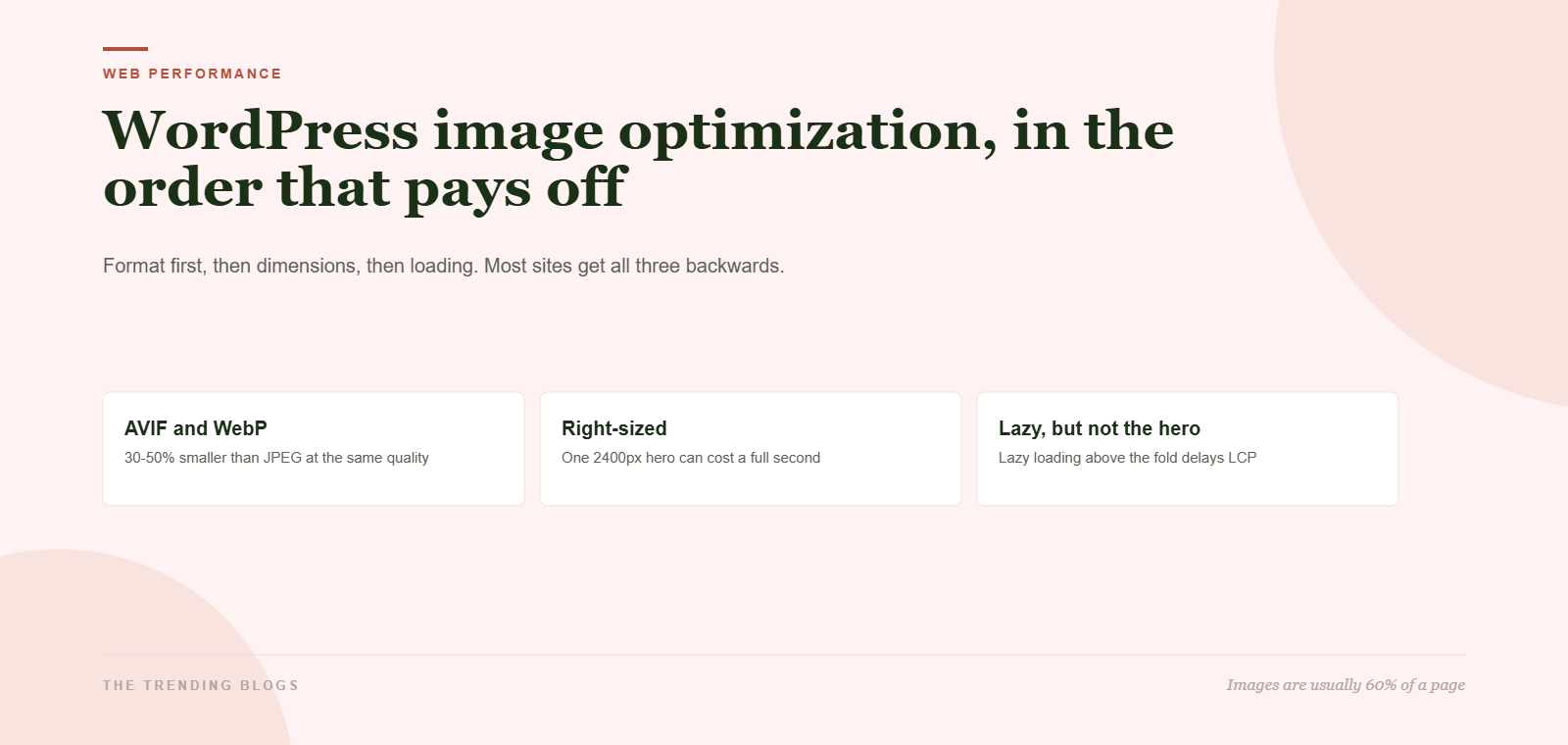
Image work is the least glamorous speed job on a WordPress site and almost always the one with the highest payoff. On the sites we audit, images are 55 to 70 percent of total page weight, and the hero image is the Largest Contentful Paint element on nearly every page. Fix the images and the scores move. Skip them and no amount of caching plugin tuning will save you. Here is the WordPress image optimization order that makes the biggest difference.
The catch is that most image advice is a pile of unordered tips. Convert to WebP. Turn on lazy loading. Add a CDN. Done in isolation, some of those make things worse. Here is the order that works, and what each step is actually worth.
Format first, because it is the biggest single win
Format is where the free money is. The same photograph, exported to look identical to a human eye, ranges from under 120 KB to nearly two megabytes depending only on the file type you chose in the export dialog.
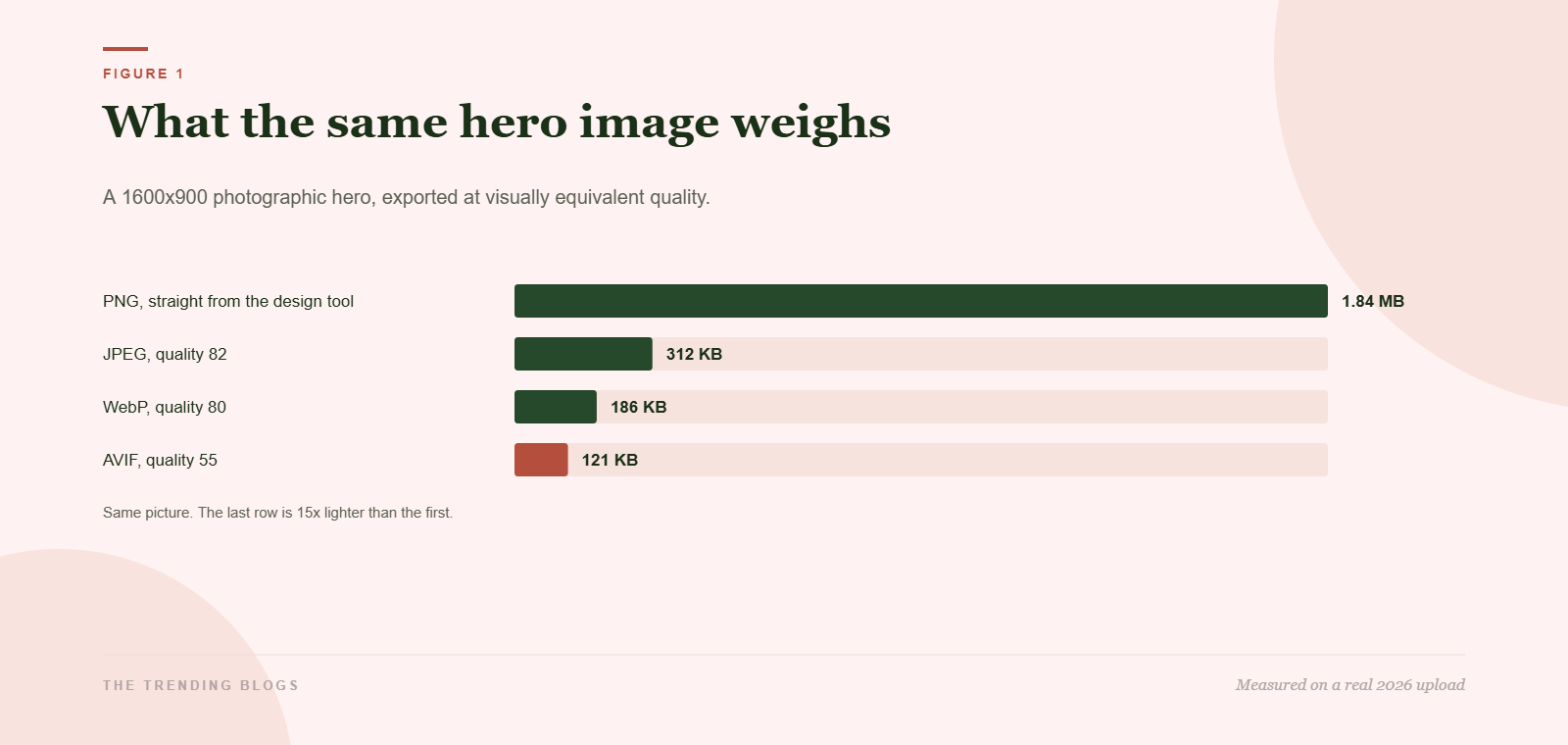
The rule of thumb for 2026: AVIF for photographs, WebP as the fallback, and PNG only for screenshots, logos, and anything with flat colour and hard edges where you would notice compression artefacts. If your workflow is a designer handing you PNG exports, that single habit is probably costing you a second of load time per page.
You do not need to convert anything by hand. LiteSpeed Cache, Imagify, ShortPixel and Cloudflare Polish all do it on the fly and serve the modern format only to browsers that support it. Pick one. Running two conversion plugins at once is a classic way to end up with a media library full of duplicates and no measurable gain, which is the same trap we described in the WordPress Core Web Vitals fix order.
Second: stop uploading 3000-pixel files
Format decides the bytes per pixel. Dimensions decide how many pixels you are paying for. A 3000 by 2000 photo dropped into a content column that renders at 760 pixels wide is roughly four times the data it needs to be, and no compression plugin can fix that because the file is doing exactly what you asked.
Two habits solve it. Resize on export so nothing above 2000 pixels wide ever enters the media library, and make sure WordPress is generating and serving a real srcset so a phone downloads the 768-pixel version instead of the desktop one. Both are five-minute jobs. When we rebuilt a client site around these two rules, the median page dropped 1.4 MB before we touched a single line of code, which was most of the story in how we took a site from 6.8 seconds to 1.2 seconds.
Third: loading order, and the lazy-load mistake almost everyone makes
Lazy loading is good. Lazy loading the hero image is not. When a browser sees loading equals lazy on the image at the top of the page, it deliberately waits before fetching it, which delays the exact paint that Google is measuring. We see this on maybe a third of the sites we look at, usually because a plugin was set to lazy load every image without exclusions.
So: exclude the first image, or anything above the fold, from lazy loading. Then go one step further and preload it. A single preload hint for the hero typically buys 200 to 400 milliseconds of Largest Contentful Paint, because the browser starts the download before it has finished parsing the stylesheet.
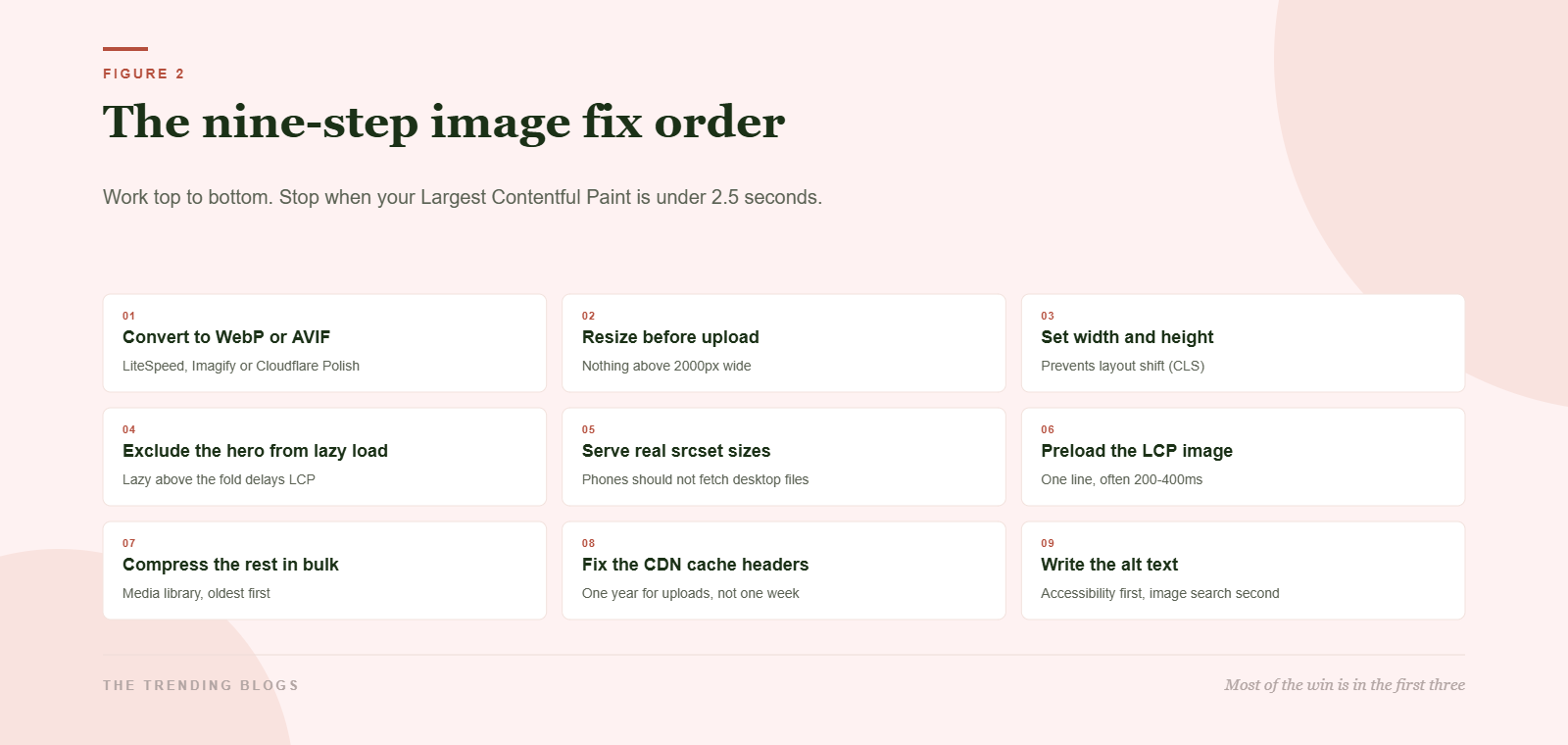
What each step is worth
| Step | Typical effort | Typical gain |
|---|---|---|
| Convert to AVIF or WebP | 30 minutes, once | 30 to 50 percent of image weight |
| Resize before upload | A habit, not a task | Varies, often 1 MB or more per page |
| Set explicit width and height | Automatic in the block editor | Removes most layout shift |
| Exclude the hero from lazy load | One setting | 200 to 600 ms of LCP |
| Preload the LCP image | One line per template | 200 to 400 ms of LCP |
| Bulk compress the back catalogue | An hour of unattended work | Helps old posts, not the homepage |
| Fix upload cache headers | One config change | Faster repeat visits only |
| Write alt text | Ongoing | Accessibility, plus image search |
Three mistakes that undo the work
- Stacking optimisation plugins. Two conversion plugins, or a conversion plugin plus Cloudflare Polish, will fight each other and sometimes serve the heavier file. Pick one layer and turn the others off.
- Compressing to the point it shows. Quality 40 AVIF on a product photo saves 30 KB and costs you the sale. Photographic images look fine down to about quality 55 in AVIF and 75 in WebP. Below that, people notice.
- Optimising the media library but not the theme. Sliders, logos, patterned backgrounds and icon sprites loaded by the theme or a page builder usually sit outside whatever your image plugin touches. Check the network tab, not the plugin dashboard.
That last one is the reason a technical audit is worth more than a plugin. If a theme is loading eight stylesheets and thirty scripts before the hero image gets a look in, images are no longer your bottleneck, and it is worth reading how to choose a web development agency before you pay someone to keep patching it.
WordPress image optimization: the 45-minute version
- Open the site on a phone connection and note which image is the Largest Contentful Paint element.
- Turn on WebP or AVIF conversion in one plugin, and only one.
- Exclude the first image on every template from lazy loading.
- Add a preload hint for the hero on the homepage and the post template.
- Set the uploads directory cache header to one year.
- Re-run the test and write down the before and after. If Largest Contentful Paint is now under 2.5 seconds, stop.
Speed is not the only thing riding on this. Fast, correctly sized images matter for paid traffic too, where a slow hero is one of the cheapest ways to lose a click you already paid for. If you are running ads to these pages, the rest of that list is in the landing page checklist for paid ads. And if you are hoping to get quoted by AI assistants, page speed is a real factor in whether a crawler finishes rendering your page at all, which we covered in how to get cited by ChatGPT and Google AI.
Where the CDN fits, and where it does not
A content delivery network moves your files closer to the visitor and, on most plans, will convert and resize images at the edge for you. That is genuinely useful, and it is also where a lot of teams stop thinking. A CDN does not make a 1.8 MB PNG small. It makes a 1.8 MB PNG arrive slightly faster from a nearer city.
The other half of the job is cache headers. Uploads should be served with a one-year max-age, because the filenames change when the file changes. We still find sites shipping a seven-day header on the uploads directory, which means returning visitors re-download every image every week for no reason. It is a one-line change and it only helps repeat visits, which is exactly why nobody gets around to it.
How to measure without fooling yourself
Test one page, on a throttled mobile connection, three times, and take the median. Then change one thing and repeat. The reason for the discipline is that image work produces small, real gains that are easy to lose in test noise, and it is very easy to convince yourself a setting helped when what actually happened is that the second run hit a warm cache.
- Before you start: record total page weight, image weight, and Largest Contentful Paint for your three most-visited pages.
- After each change: record the same three numbers. Roll back anything that does not move them.
- After 28 days: check the Core Web Vitals report in Search Console, which is the only number Google actually uses.
That last point is worth sitting with. Lab tools are a diagnostic; field data is the grade. Everything in this article is aimed at the field number, and the broader diagnosis order lives in the 2026 Core Web Vitals guide.
While you are tuning the theme, check your structured data too. Blog schema markup in 2026 covers what earns rich results and what Google ignores.
Common questions
Should I use AVIF or WebP in 2026?
Both. Serve AVIF to browsers that accept it and WebP to the rest. Browser support for AVIF is now effectively universal on current versions, but WebP remains the safer fallback for older Android devices and email clients, and every serious conversion plugin handles the negotiation for you.
Does converting images break the ones already in my posts?
It should not. Conversion plugins keep the original file and serve the converted version at request time, so your post markup and URLs do not change. Take a backup before the first bulk run anyway, for the same reason you take one before any bulk operation. The WordPress security and backup checklist covers what a usable backup looks like.
Is alt text an SEO ranking factor?
Not directly for the page, but it is how you rank in image search, and it is the only description a screen reader user gets. Write what the image shows in one plain sentence. Skip the keyword stuffing, and skip the alt text entirely on purely decorative images.
How much should I care about the score versus the field data?
Field data, always. A lab score of 98 with real users failing Largest Contentful Paint means your test conditions are not your audience. Check the Core Web Vitals report in Search Console after 28 days, not the lab tool five minutes after a change.
