A slow website can be difficult to diagnose because the problem is rarely caused by one thing. A large image may be responsible for part of the delay, but plugins, database queries, JavaScript, hosting, and third-party scripts can all contribute to the final load time.
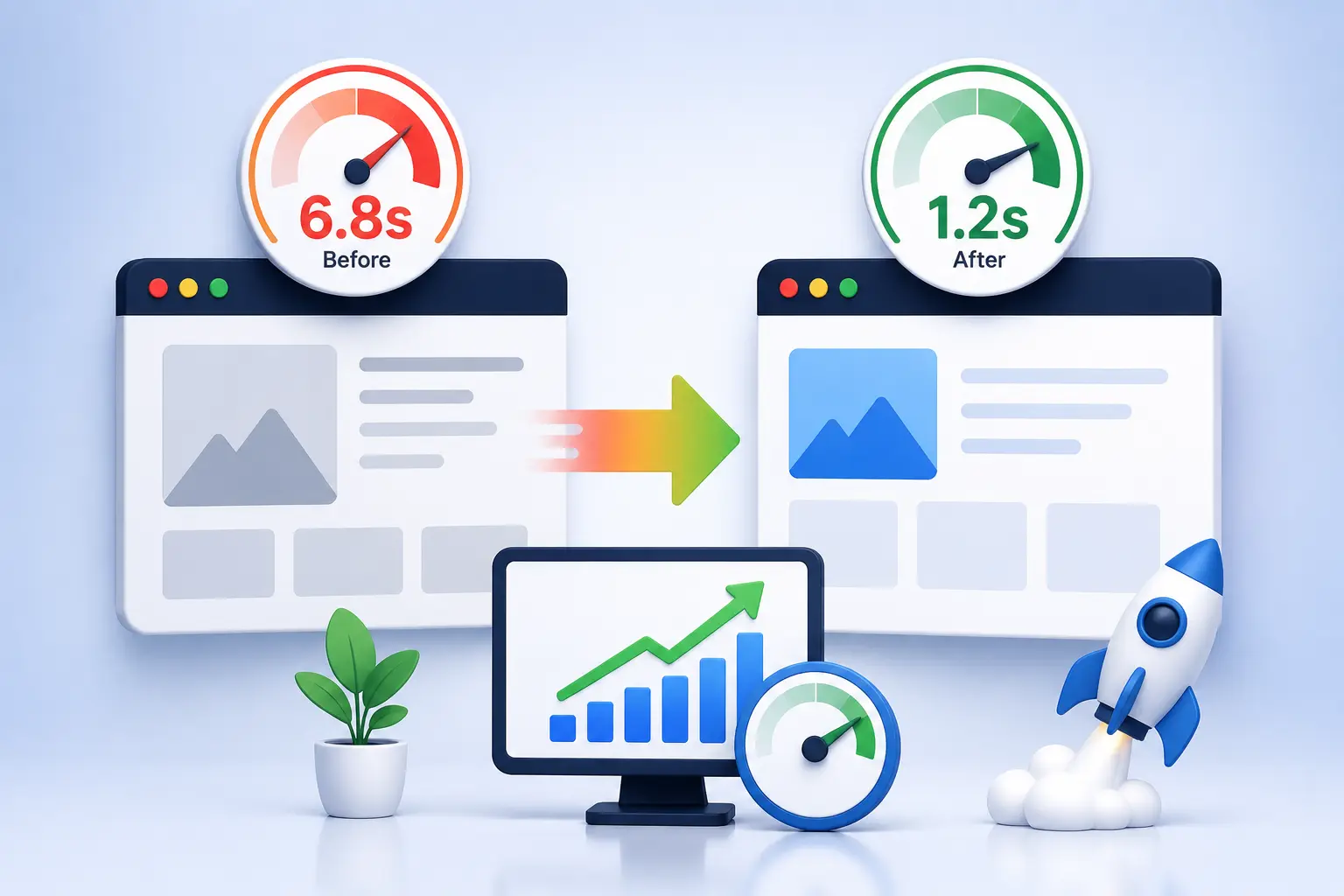
I recently worked on a WordPress website where the initial page load was around 6.8 seconds. The goal wasn’t simply to make a speed-testing tool show a better number. The real objective was to make the website feel faster for visitors while keeping its important features working normally.
After reviewing the website, removing unnecessary bottlenecks, and testing each major change, the load time came down to approximately 1.2 seconds on the tested page and setup.
Here is what I changed.
The Website Wasn’t Slow for Just One Reason
The first mistake would have been to install a caching plugin and assume the job was finished.
If you would rather hand this work over than do it yourself, this guide on how to choose a web development agency covers the questions worth asking first.
The website had several performance issues working together:
- Large and poorly optimized images
- Plugins loading assets where they weren’t needed
- Unused CSS and JavaScript
- Database overhead
- Heavy third-party scripts
- Inefficient queries
- Too many requests on the initial page
- Hosting configuration that needed improvement
The first step was therefore diagnosis, not optimization.
Step 1: I Measured the Starting Point
Before changing anything, I recorded the existing performance.
The initial result was approximately:
6.8 seconds load time
I checked the website using more than one performance measurement method because a single test does not always tell the complete story.
I also looked at:
- Largest Contentful Paint
- Total page requests
- Page size
- Server response time
- JavaScript execution
- Image sizes
- CSS delivery
- Database activity
This gave me a clearer picture of where the time was actually going.
Step 2: I Audited the Plugins
Plugins are useful, but every additional plugin can introduce code, database queries, scripts, or external requests.
I reviewed the installed plugins and separated them into three groups:
Essential: Plugins required for important business functionality.
Useful: Plugins that provided value but needed configuration or optimization.
Unnecessary: Plugins that were no longer being used or duplicated another feature.
Removing unnecessary plugins reduced the amount of code the website needed to process.
For businesses with unusual requirements, WordPress Plugin Developer Services can also be a better approach than installing several plugins for small pieces of functionality. A lightweight custom solution can sometimes do exactly what is required without bringing an entire collection of unrelated features into the website.
Step 3: I Optimized Images
Images were one of the easiest areas to improve.
Several images were significantly larger than their displayed dimensions. Instead of serving oversized files, I resized them according to where they were actually being used.
I also:
- Compressed large images
- Used modern image formats where appropriate
- Served responsive image sizes
- Checked lazy-loading behavior
- Avoided loading images that weren’t immediately visible
This reduced the amount of data the browser had to download.
Step 4: I Reduced Unnecessary CSS and JavaScript
The website was loading assets that weren’t required on every page.
For example, a plugin might need its JavaScript on a checkout page but have no reason to load the same script on a simple blog post.
I reviewed asset loading and reduced unnecessary files where possible.
I also looked at:
- Render-blocking resources
- Unused CSS
- JavaScript execution
- Script loading order
- Third-party resources
The goal wasn’t to remove scripts blindly. Every change was tested to make sure important functionality continued to work.
Step 5: I Improved Caching
Caching allows frequently requested information to be served more efficiently instead of being generated repeatedly.
I reviewed the website’s caching setup and configured it around the actual requirements of the site.
For an eCommerce website, this requires extra care because pages such as cart, checkout, and account areas often contain dynamic information.
A performance configuration that works perfectly for a basic blog may not be appropriate for a WooCommerce store.
Step 6: I Looked at Database Performance
As a WordPress website grows, its database can accumulate revisions, transient data, plugin information, and other records.
I checked the database for unnecessary overhead and reviewed queries that were taking longer than expected.
The objective wasn’t to aggressively delete data. Instead, I focused on safe cleanup and better query behavior.
For a larger WooCommerce store, this becomes even more important because products, orders, customer information, sessions, and other records can create substantial database activity.
Step 7: I Reviewed Third-Party Scripts
Analytics, chat widgets, advertising tools, social integrations, and other external services can add significant work to a page.
I reviewed each third-party script and asked a simple question:
Does this script provide enough business value to justify its performance cost?
Some scripts were removed, while others were loaded differently.
This was particularly useful because third-party resources are easy to overlook when investigating website performance.
Step 8: WooCommerce Needs a Different Approach
If the website is an online store, performance optimization becomes more complicated.
WooCommerce pages can contain dynamic information related to:
- Products
- Cart contents
- Customer sessions
- Shipping
- Taxes
- Payment methods
- Stock availability
This means optimization has to preserve functionality.
For growing stores, businesses may choose to Hire WooCommerce Developers who can examine WooCommerce-specific queries, plugins, checkout processes, integrations, and custom functionality rather than applying generic WordPress speed fixes.
In some cases, Custom WooCommerce Solutions can also reduce unnecessary plugin dependency and improve the way specific business processes are handled.
Step 9: I Improved the Server Response
Frontend optimization is only part of the equation.
If the server takes too long to generate the initial response, visitors are already waiting before the browser starts rendering the page.
I reviewed:
- PHP configuration
- Hosting resources
- Server response time
- Object caching
- Database performance
- CDN configuration
The exact solution depends on the website and hosting environment. There is no single server configuration that is ideal for every WordPress installation.
Step 10: I Tested After Every Major Change
One of the most important lessons from the project was simple:
Don’t make ten performance changes at once.
When several changes are implemented together, it becomes difficult to identify which one actually helped.
I made changes in stages and tested the website after each major optimization.
I also checked important functionality such as:
- Forms
- Navigation
- Login
- Search
- Product pages
- Cart
- Checkout
- Third-party integrations
A fast website that doesn’t work correctly isn’t an optimization success.
The Result
After completing the optimization work and testing the changes, the measured page load time dropped from approximately:
6.8 seconds → 1.2 seconds
That was a significant improvement, but the number itself wasn’t the only thing that mattered.
The website also became more responsive during normal browsing, and several unnecessary resources were removed from the page-loading process.
The important lesson is that the improvement came from several small and targeted changes rather than one magic plugin.
What I Would Do Differently on a New Website
If I were starting the project from scratch, I would approach performance much earlier.
Instead of building a website first and optimizing it later, I would establish performance requirements during development.
That means:
- Choosing suitable hosting
- Using a lightweight theme or custom frontend
- Limiting unnecessary plugins
- Optimizing images from the beginning
- Planning database structures carefully
- Loading assets only where required
- Monitoring Core Web Vitals
- Testing on mobile devices
- Keeping third-party scripts under control
For businesses investing in Custom WordPress Website Development Services, performance should be part of the architecture rather than something added after launch.
When Custom Development Makes More Sense
Sometimes performance problems are symptoms of a larger architectural issue.
If a website depends on numerous plugins to provide small pieces of custom functionality, replacing those pieces with carefully developed solutions may make the system easier to maintain.
This is where WordPress Plugin Developer Services can be valuable. Instead of adding another general-purpose plugin, a developer can create functionality specifically around the website’s requirements.
The same principle applies to WooCommerce. A growing store may eventually need custom product logic, checkout functionality, integrations, or automation that standard plugins don’t handle efficiently.
Final Takeaway
Reducing a website from 6.8 seconds to 1.2 seconds wasn’t about finding a secret speed trick. It was about measuring the problem, identifying the biggest bottlenecks, making targeted changes, and testing the results.
The biggest lesson is that website performance should be treated as an ongoing process.
If you’re working with WordPress, start with the basics: quality hosting, optimized images, sensible plugin usage, efficient code, caching, and regular testing. For more complex websites and online stores, professional development can help identify problems that aren’t obvious from a standard speed report.
When performance becomes a business priority, investing in Custom WordPress Website Development Services, WordPress Plugin Developer Services, or experienced WooCommerce development can help create a faster and more maintainable website without sacrificing the features your customers actually need.
Quick Performance Checklist
- Measure before making changes
- Optimize large images
- Remove unnecessary plugins
- Review CSS and JavaScript
- Configure caching correctly
- Check database performance
- Limit third-party scripts
- Improve server response time
- Test WooCommerce dynamic pages separately
- Test the website after every major change
- Monitor performance regularly
Related Reading
- How to Choose the Right Web Development Agency for Your Business
- How AI Is Changing Digital Marketing in 2026
- AI Automation Ideas That Can Save Small Businesses Hours Every Week
- WordPress Image Optimization in 2026: WebP, Sizing, and Lazy Loading
Read next: speed is now a retrieval signal as well as a ranking one — here is how AI search optimization decides whether ChatGPT and AI Overviews cite your pages.
